How to translate a whole web page
You found a page that looks really useful, but it's in another language and you can't read a word of it. You don't have to copy and paste it paragraph by paragraph. You can translate the entire page at once, images, menus, links and all. It's free, there's nothing to install, and I'll show you on both computer and phone. At the end I'll also show you how to translate a whole PDF, and even the text inside a photo.
Open Google Translate
First, open Google Translate. Go to translate.google.com, or just search for Google Translate and click the first result. This is the screen you already know, the one for translating bits of text. But look up at the top, because that's where the part almost nobody uses is hiding.
Go to the "Websites" tab
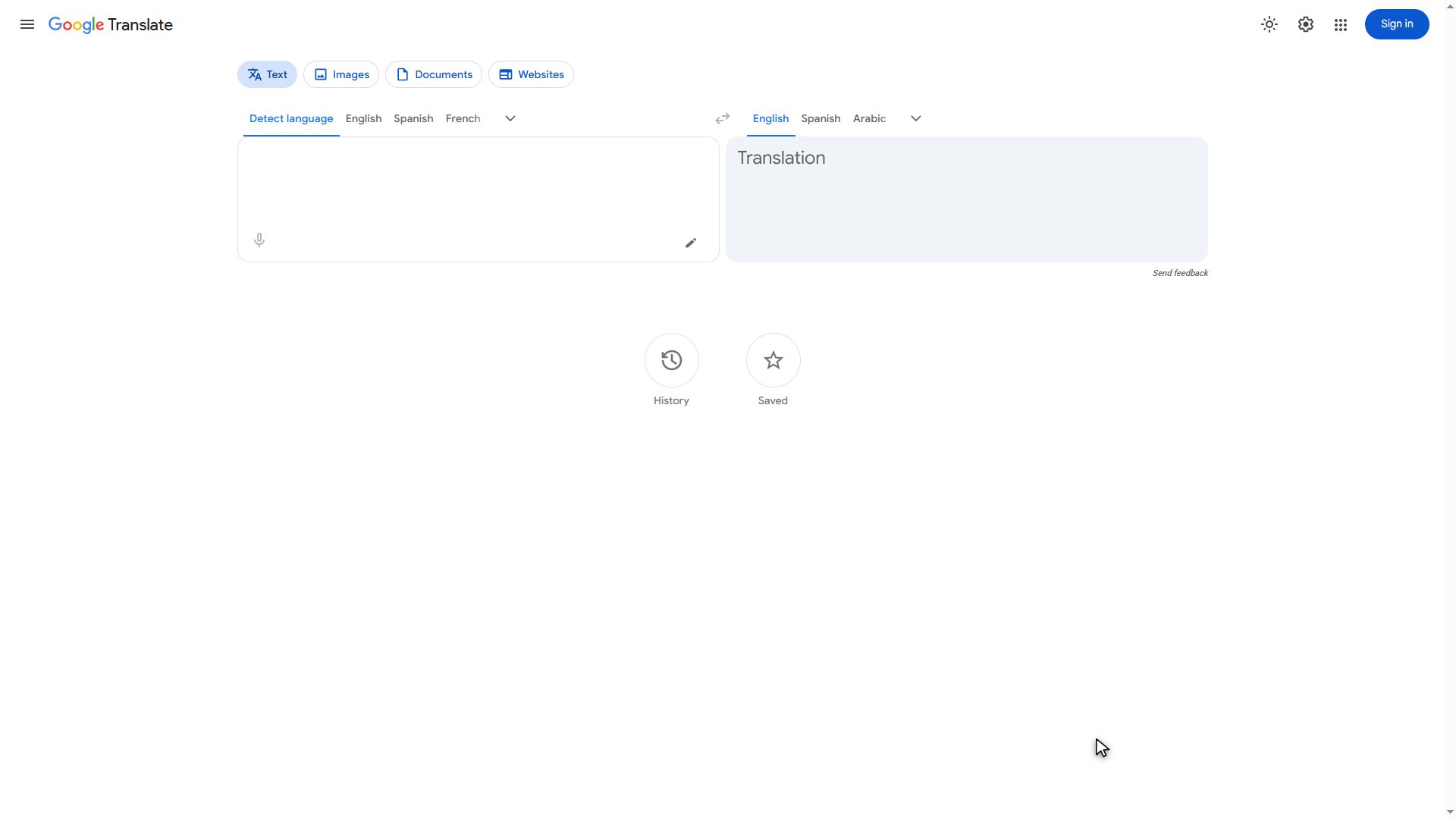
Right up there you'll see four tabs: Text, Images, Documents and Websites. The one we need is the last one, Websites. Click it.
Pick your target language
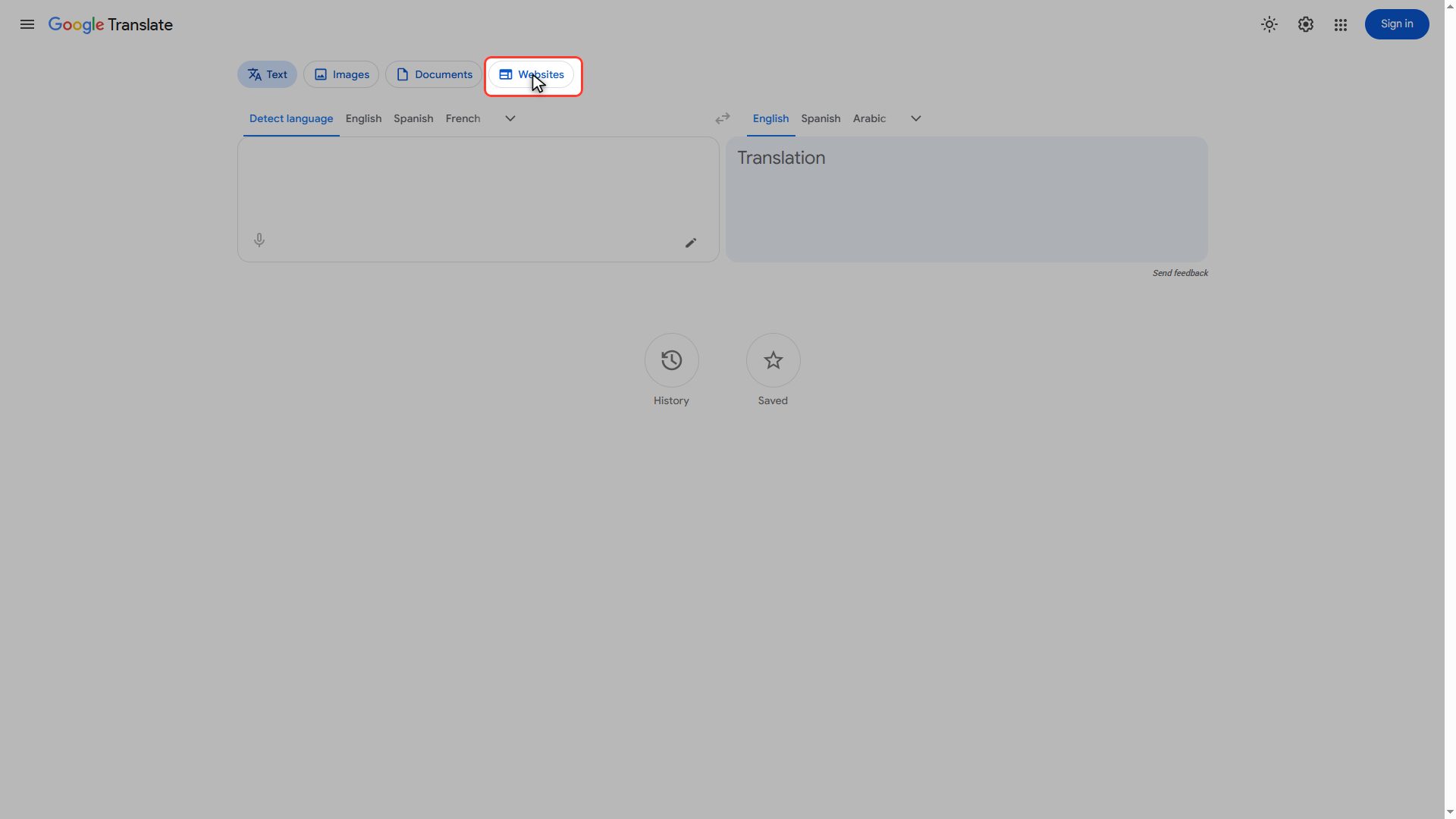
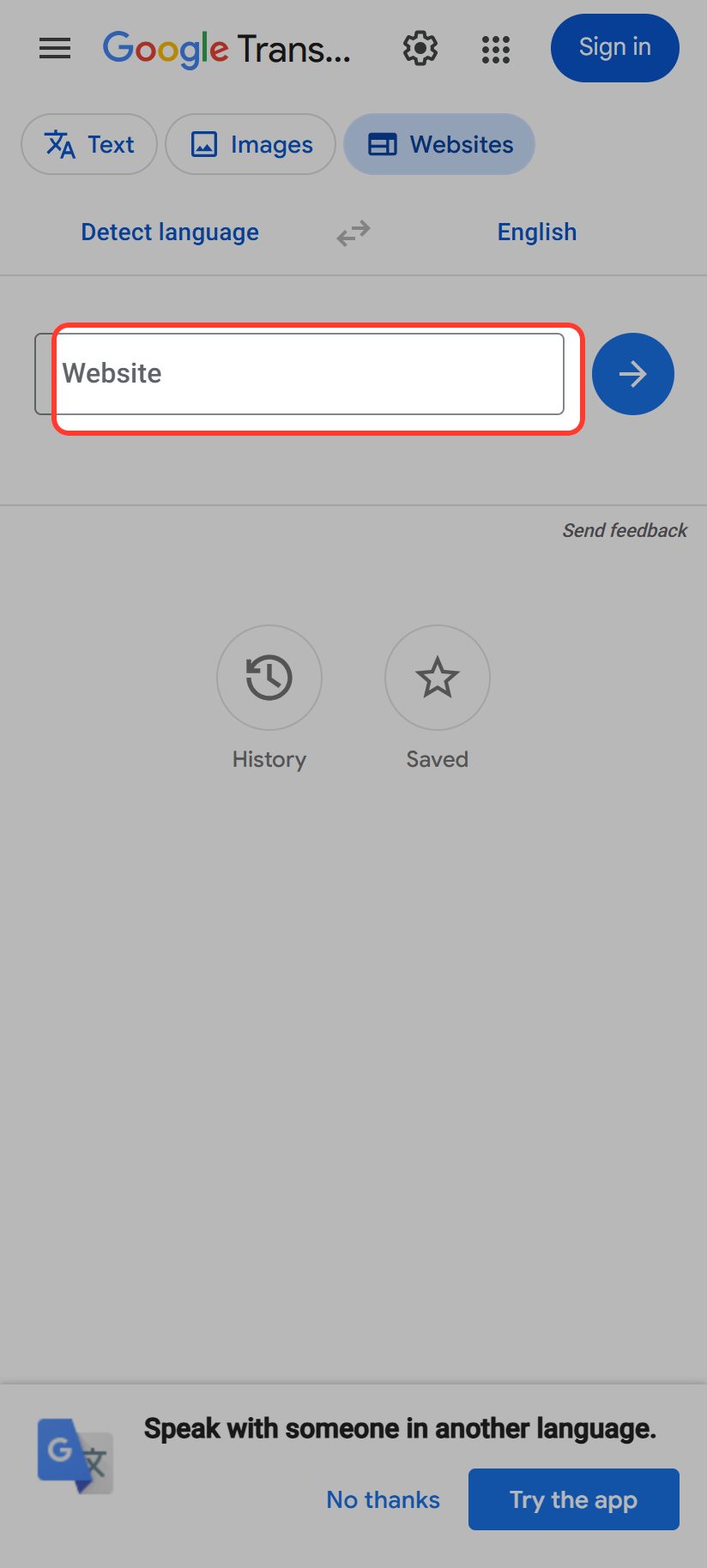
The screen changes. Now you've got two things: the languages up top, and a big field for the address. Languages first. On the left, leave it on Detect language. That's the easy way, because Google works out on its own whether the page is Spanish, French or anything else. And on the right, pick yours: English.
Paste the page address
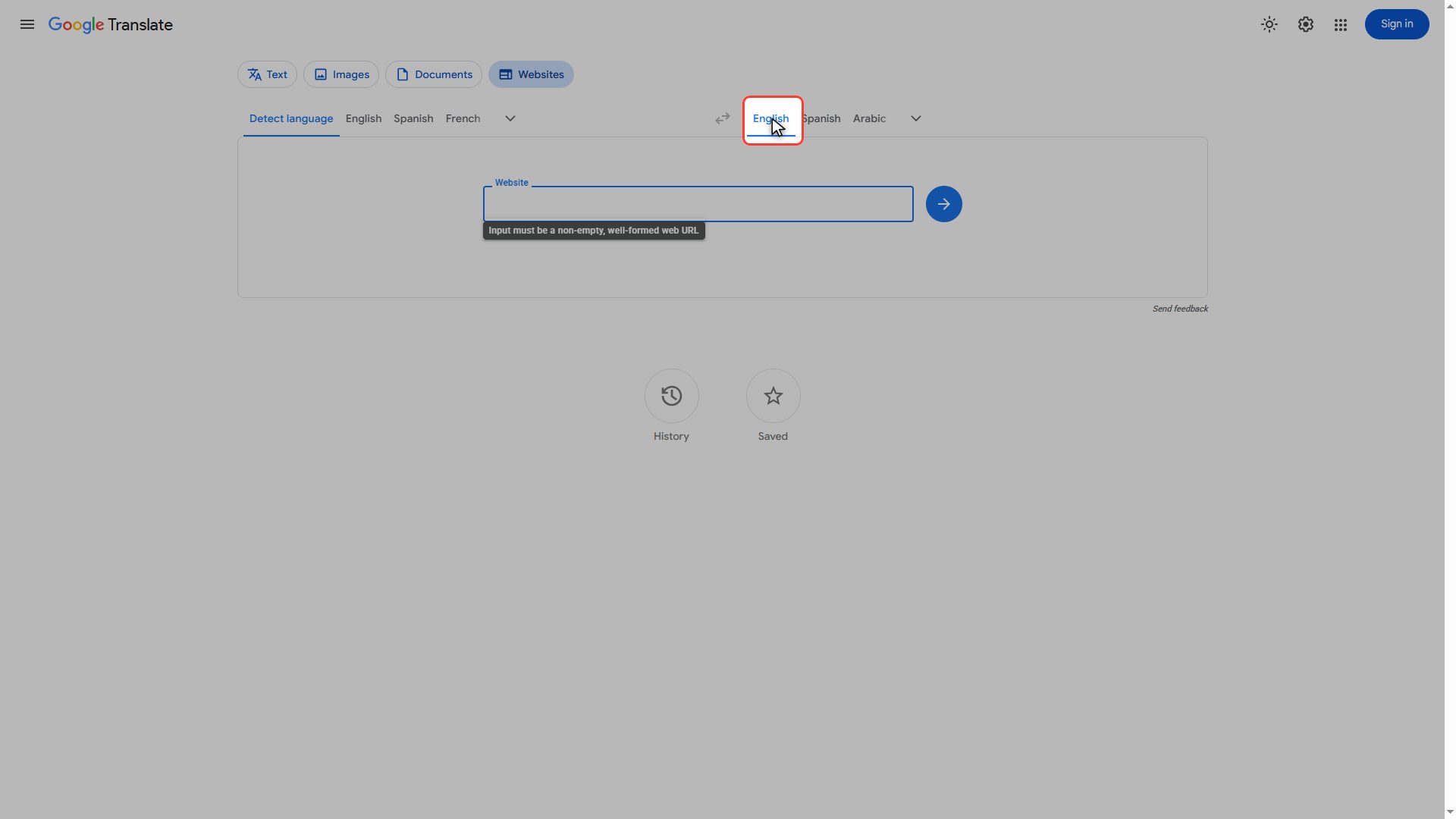
Now the address. Go to the page you want to translate, copy the full address from your browser's address bar, and paste it into this field. It has to be the complete address, starting with https. If you only paste the site's name, you'll get an error.
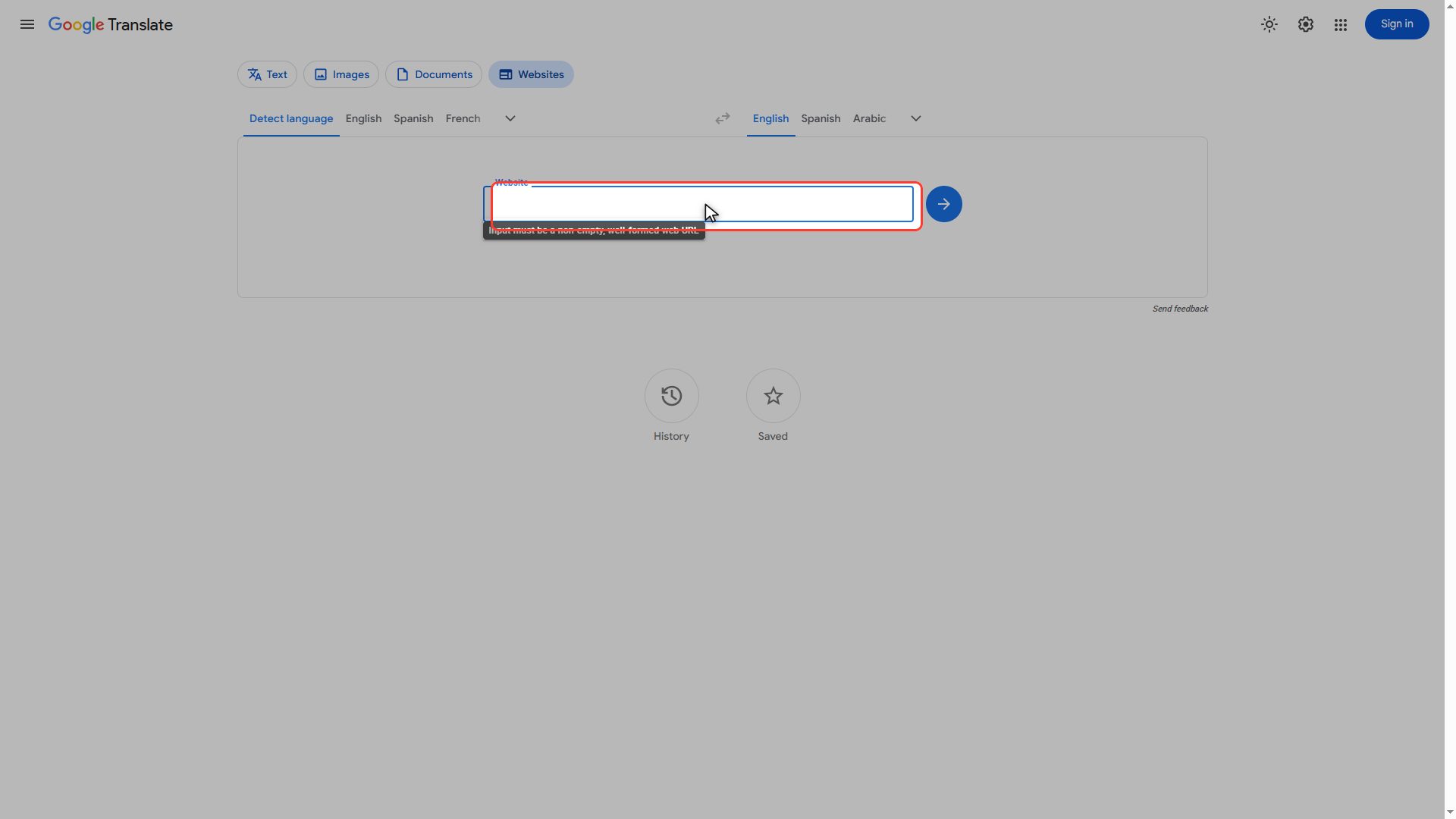
Hit "Translate website"
And that's it. Just hit the button on the right that says Translate website.
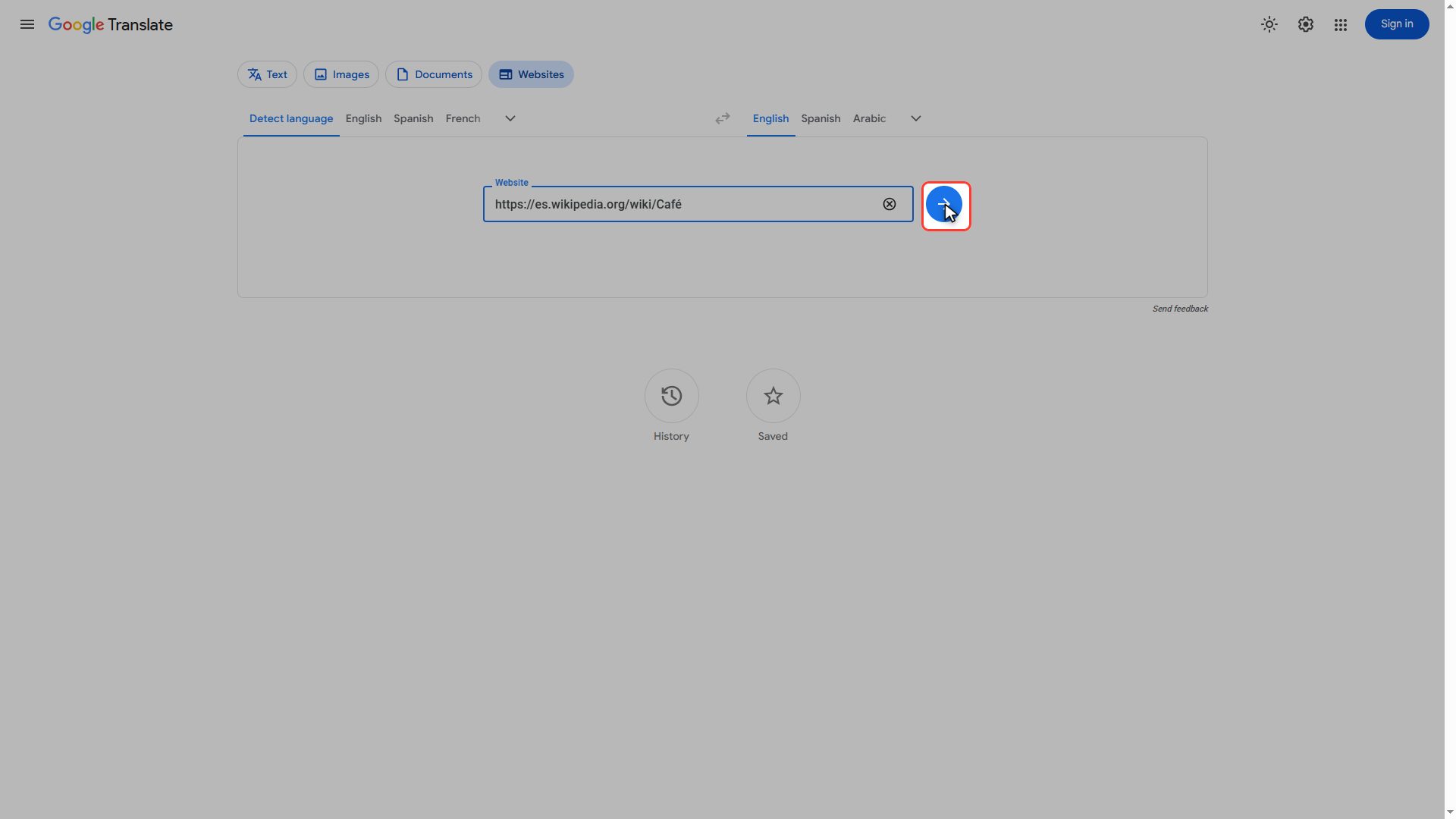
The whole page, translated
Look at that. The whole page is in English now: the headings, the paragraphs, the photo captions, the side menu, everything. And here's something important. If you click any link inside the page, the next one comes through translated too. So you can browse the entire site in your own language without doing anything else.
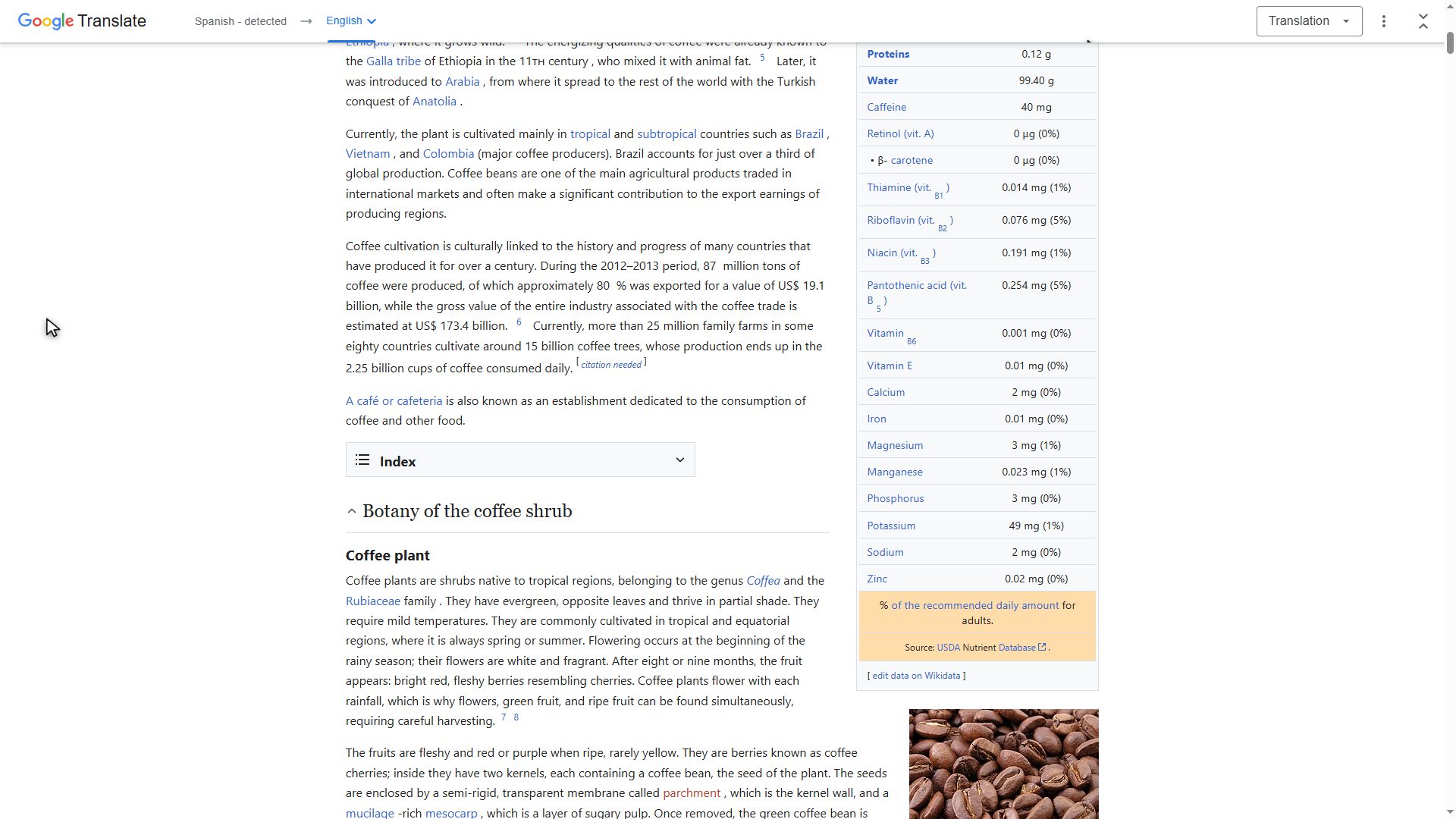
Now on your phone
Now the phone. It works the same way, but with one difference worth knowing. Open your phone's browser and go to translate.google.com, just like before.
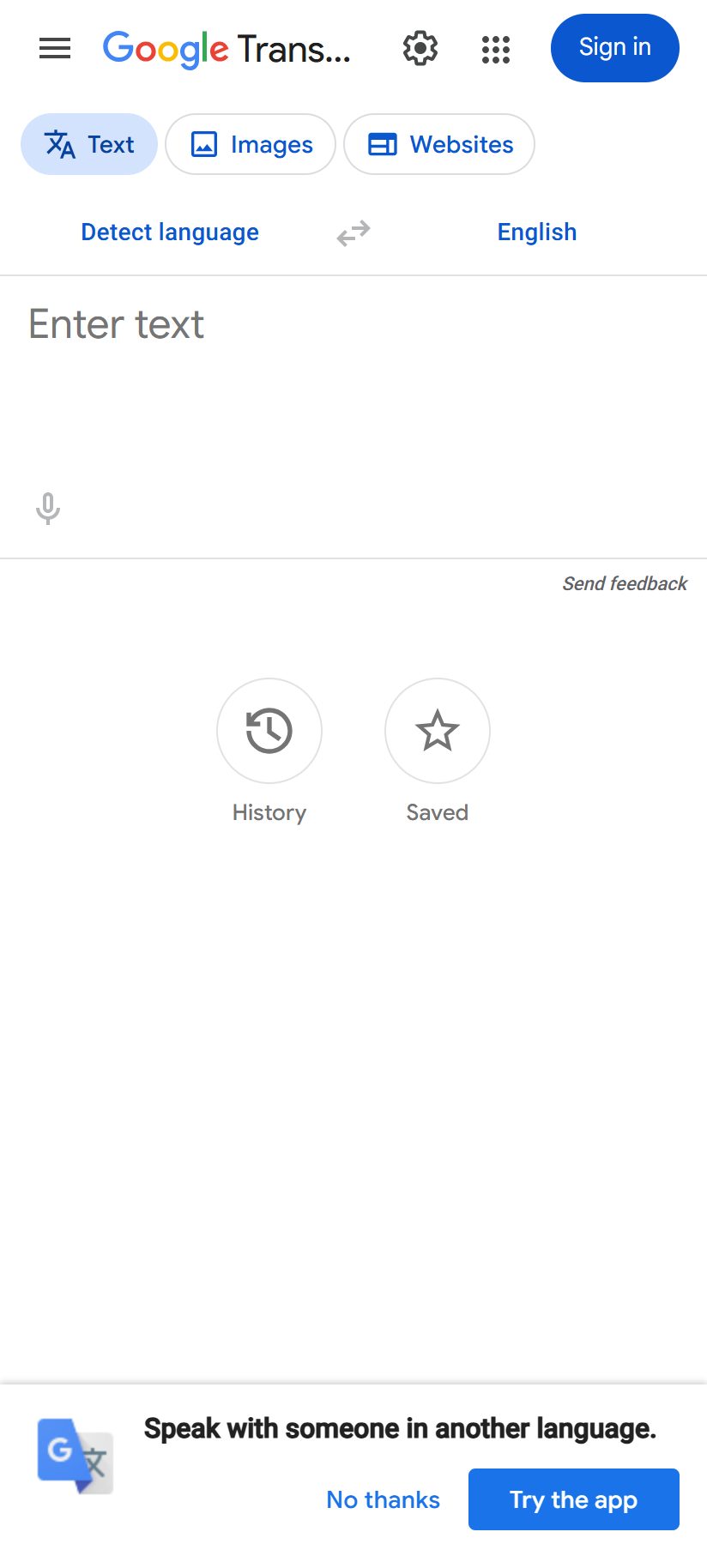
The "Websites" tab on mobile
And here's the difference: on mobile there are only three tabs, not four. Text, Images and Websites. There's no Documents tab on the phone. For that you'll need a computer. Tap Websites.
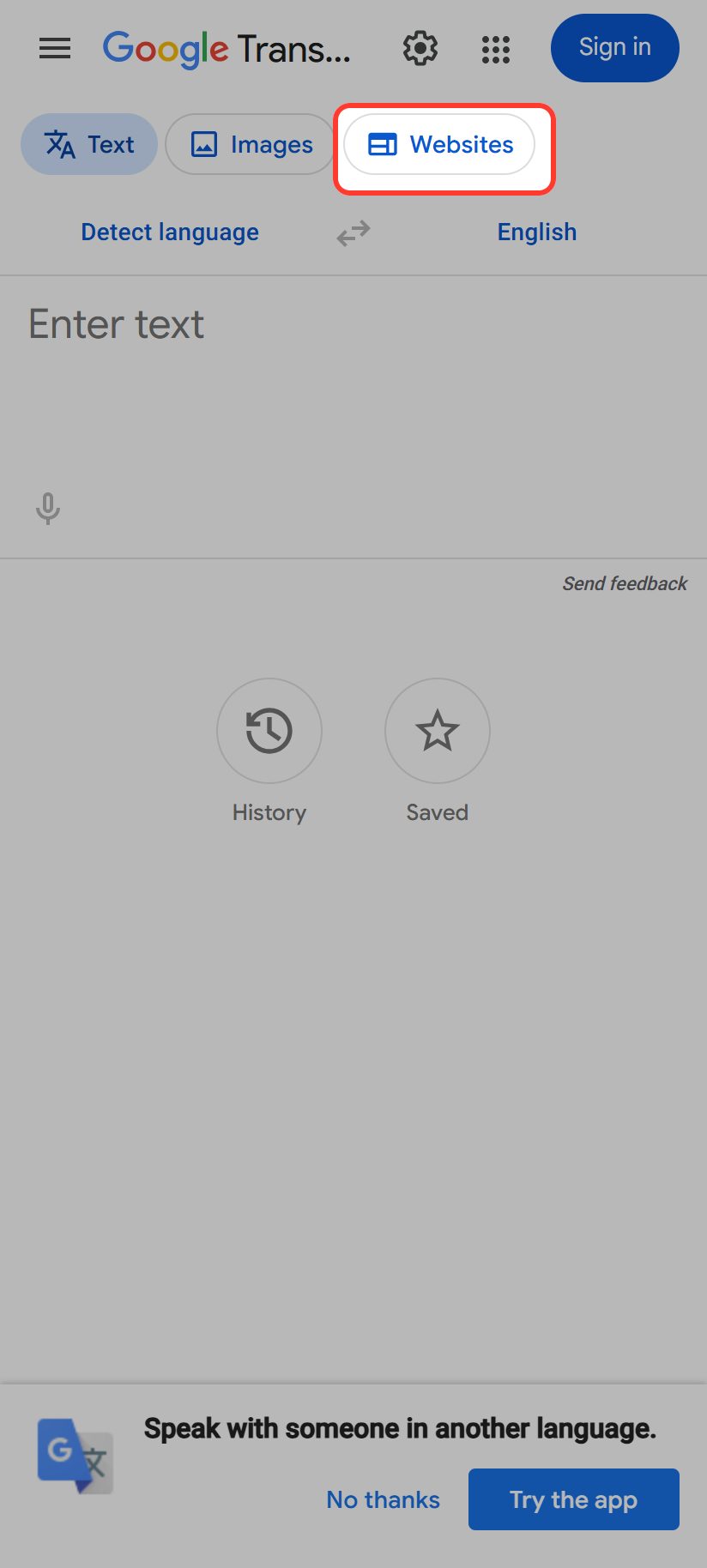
Paste the address and translate
The rest is identical: pick the language you want, paste the full address of the page, and tap Translate website. The page opens up translated exactly like on the computer, and you can follow the links the same way.
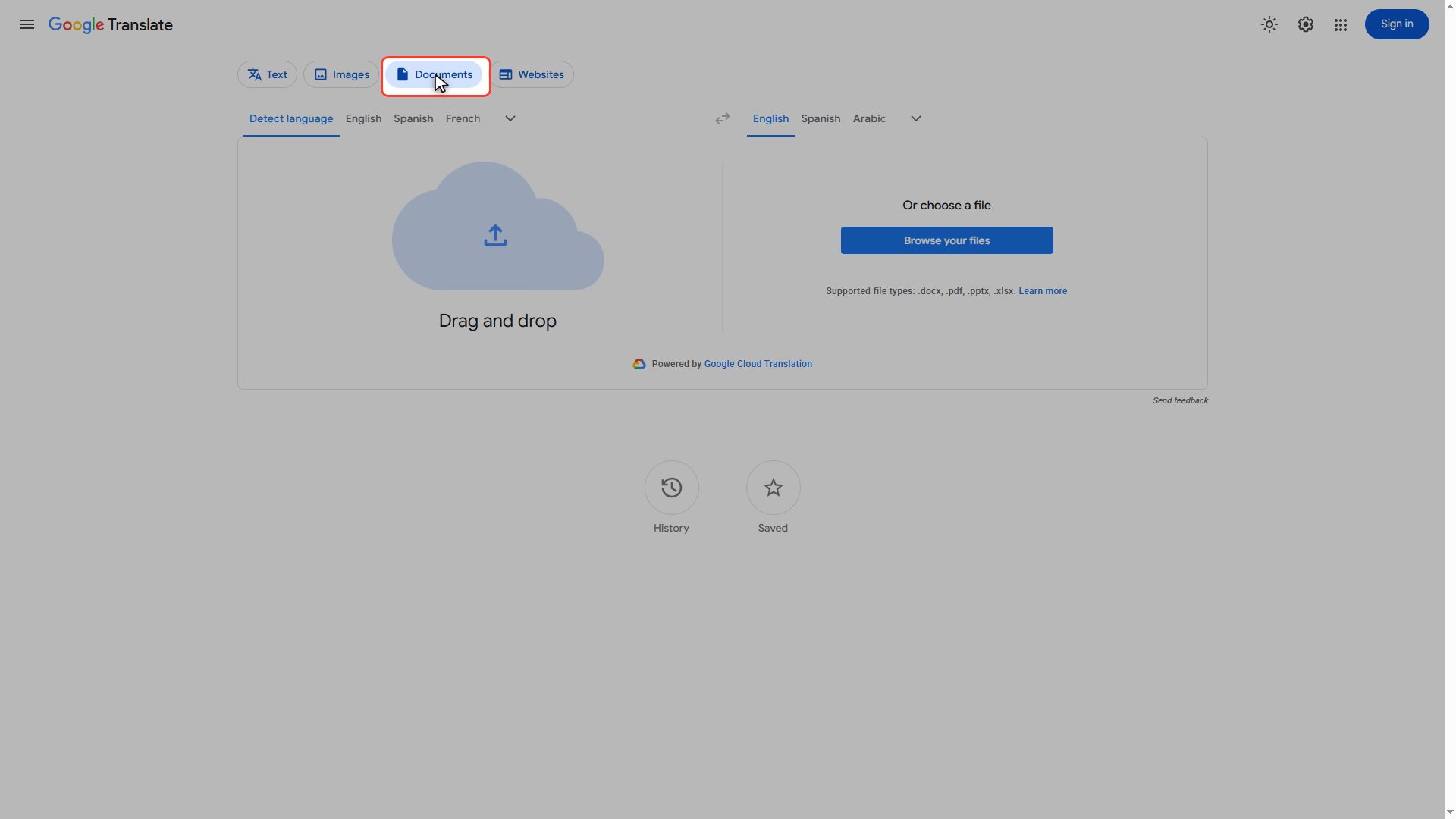
Bonus: translate a PDF or Word file
Let's go back to the computer for two more things that'll come in handy. The Documents tab translates entire files: a PDF, a Word document, a presentation. You upload the file, pick the language, and it hands it back translated with the formatting intact. Really useful for manuals, contracts, or coursework.
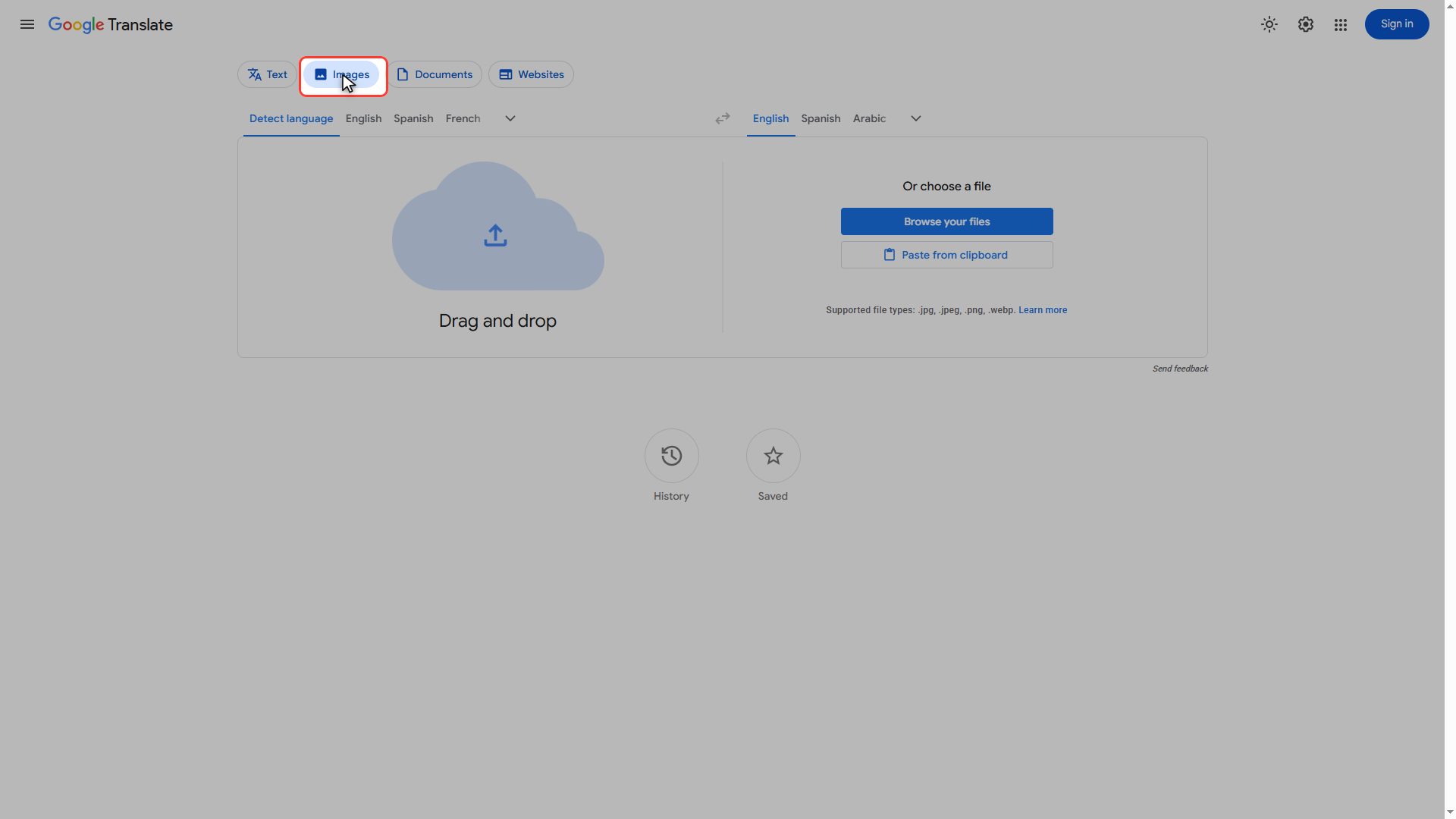
Bonus: translate text inside a photo
And pay attention to this one, because it's the limitation that confuses people the most. The website translator does not translate text that's inside images. If a page has a sign or an infographic, that text stays exactly as it was. That's what the Images tab is for: upload the photo or the screenshot, and it hands back the translated text laid over the image. Between the two tabs, nothing gets past you.
And that's everything. Whole pages, documents, even photos, all free and with nothing to install. If this helped, drop a like and subscribe. I post short, no-nonsense tutorials like this one every week. See you in the next one.
Read these next