Change YouTube back to English
Did YouTube suddenly switch to another language? Everything's in Spanish, or Portuguese, or something you can't read, and you can't find where to change it back. Don't worry, nothing is broken and nobody hacked your account. It's just a setting that got flipped, and it takes less than a minute to fix. I'll show you how on your computer, how on your phone, and at the end I'll explain why it sometimes switches back all on its own.
Open YouTube on your computer
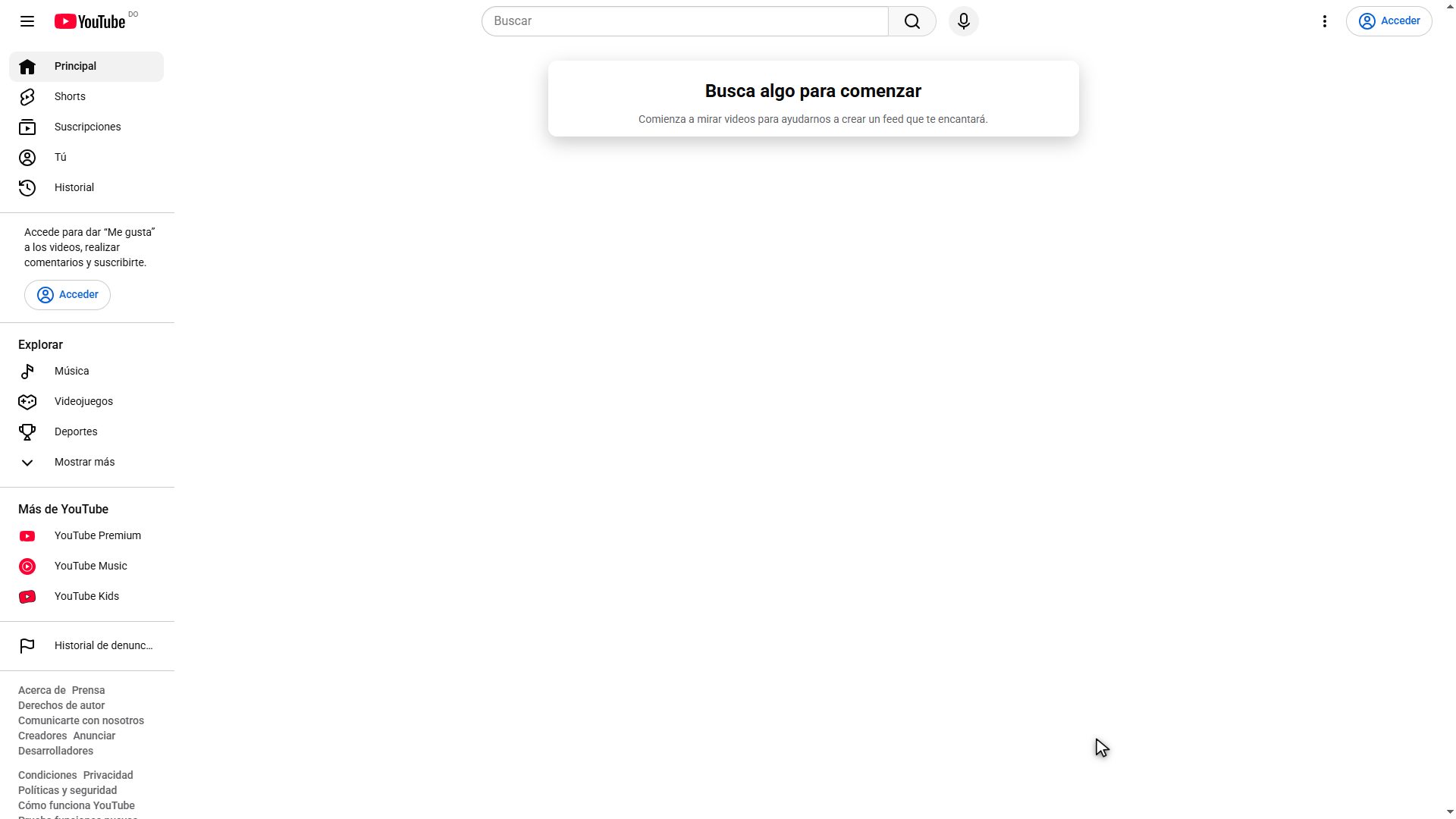
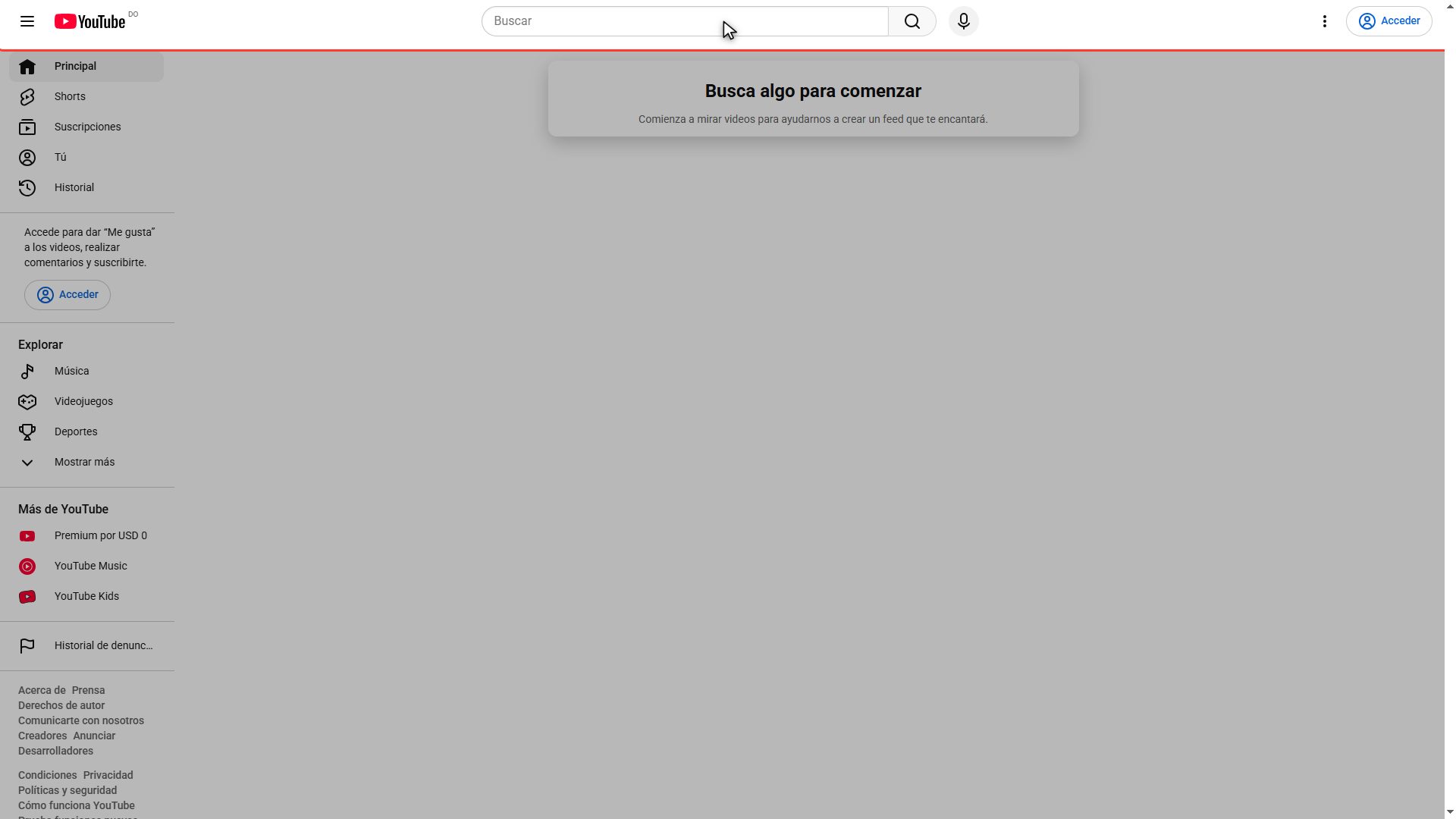
Let's start on the computer. Open your browser and go to youtube.com like you normally would. And there's the problem, right in front of us. Look at the sidebar on the left: Principal, Shorts, Suscripciones. And up in the corner, Acceder. It's all in Spanish. One important thing before we go on: you don't need to be signed in to fix this. It works even without an account.
Open the settings menu
First, look for the three vertical dots in the top right corner, right next to the blue button. That is the quick settings menu, and everything we need is in there. Click it.
Find the display language row
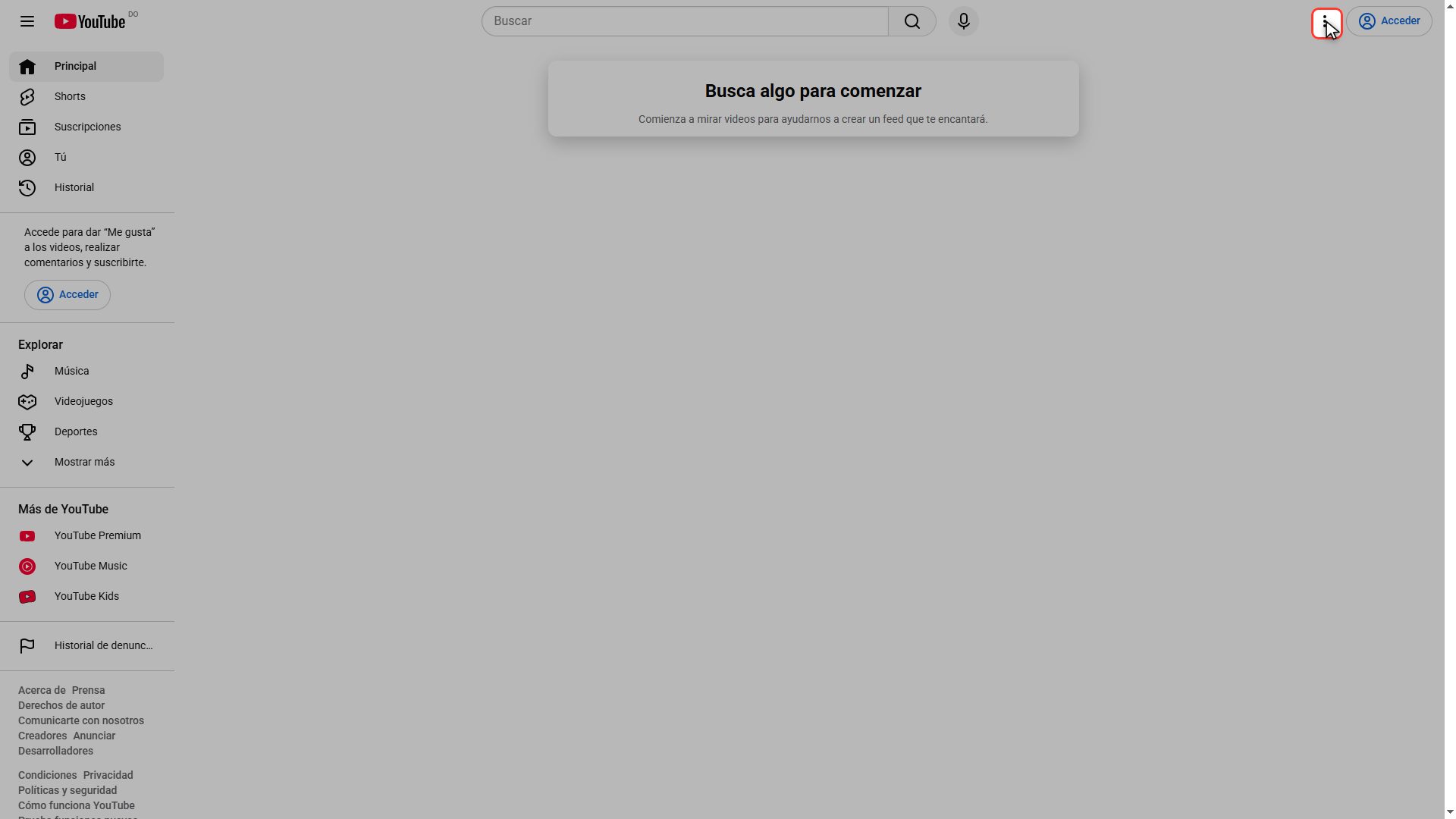
The menu opens up. You'll see a few options, and since they're in another language they won't mean much to you. The one we want is the second one down. It says Idioma de visualización, which means display language. Notice it shows what's currently set, right next to it. Click that row.
Find your language in the list
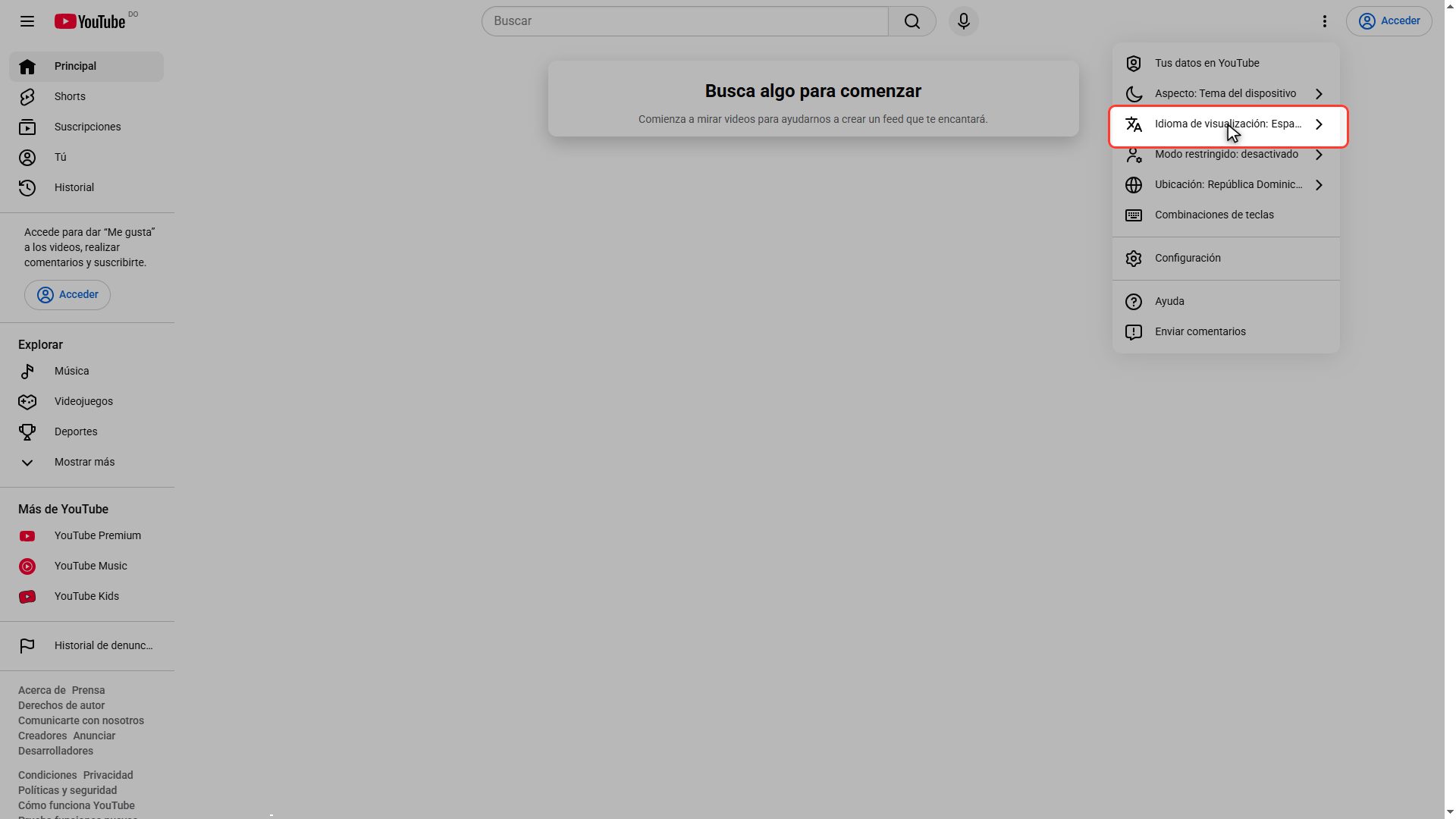
And here's the full list of languages YouTube supports, over seventy of them. They're in alphabetical order, but watch out for this, because it trips up a lot of people: every language is written in its own language. German shows up as Deutsch, French as Français. So don't look for Inglés. Look for English. Scroll down slowly with your mouse wheel.
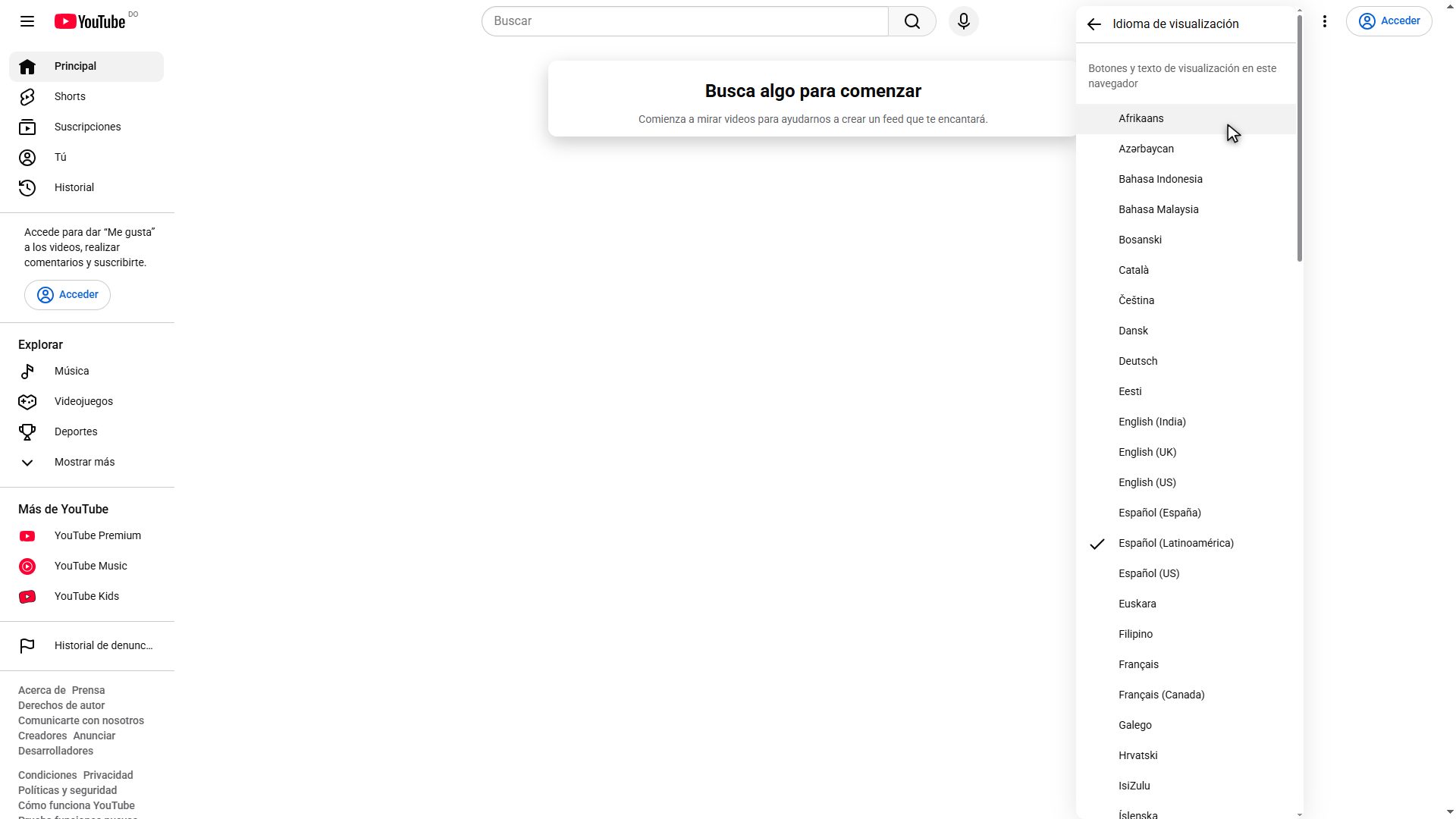
Pick English
There it is. And you'll see a few versions: English US, English UK, English India. They're nearly identical, just small spelling differences. I'll go with English US. Click it.
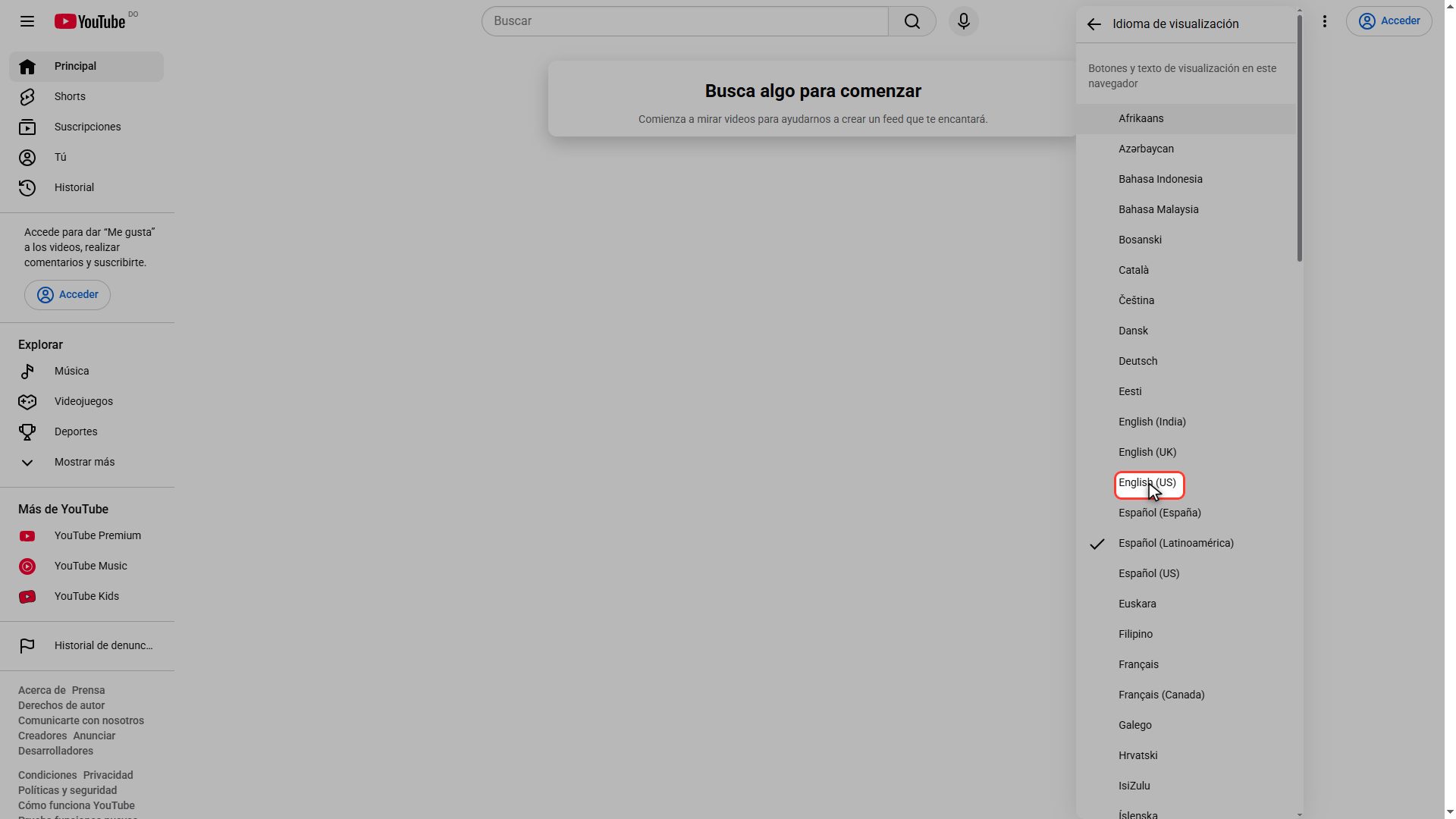
Done: YouTube in English
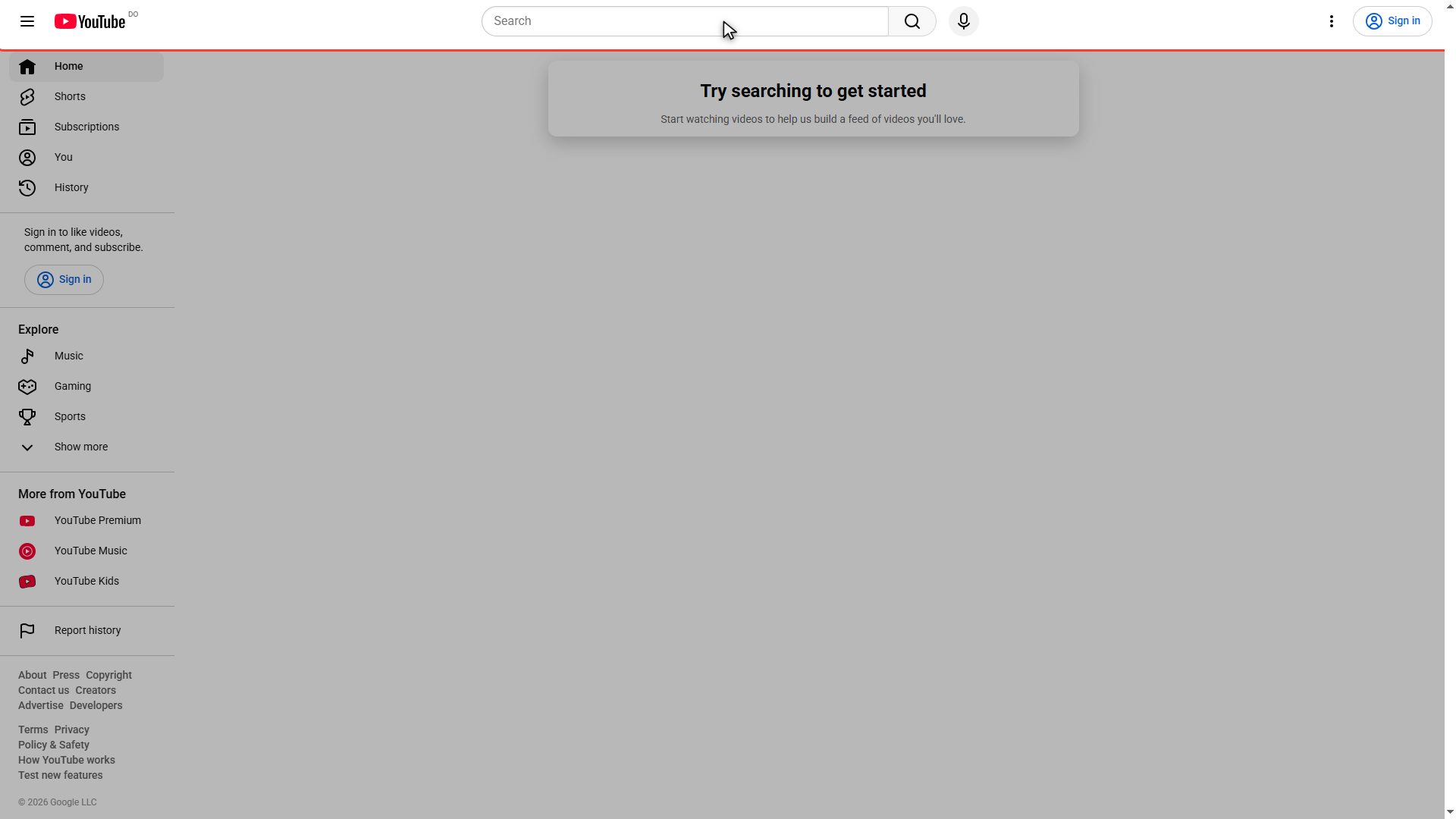
And done. The page reloads on its own, and look at everything change: Home, Shorts, Subscriptions, You. Up in the corner it now says Sign in, and the search box says Search. The whole site is back in English. That is the computer sorted.
Now on your phone
Now the phone, because the path is completely different and this is where most people get lost. Open your phone's browser and go to youtube.com. As you can see, it's in another language here too. But notice something: there are no three dots. On mobile, the settings are hidden somewhere else.
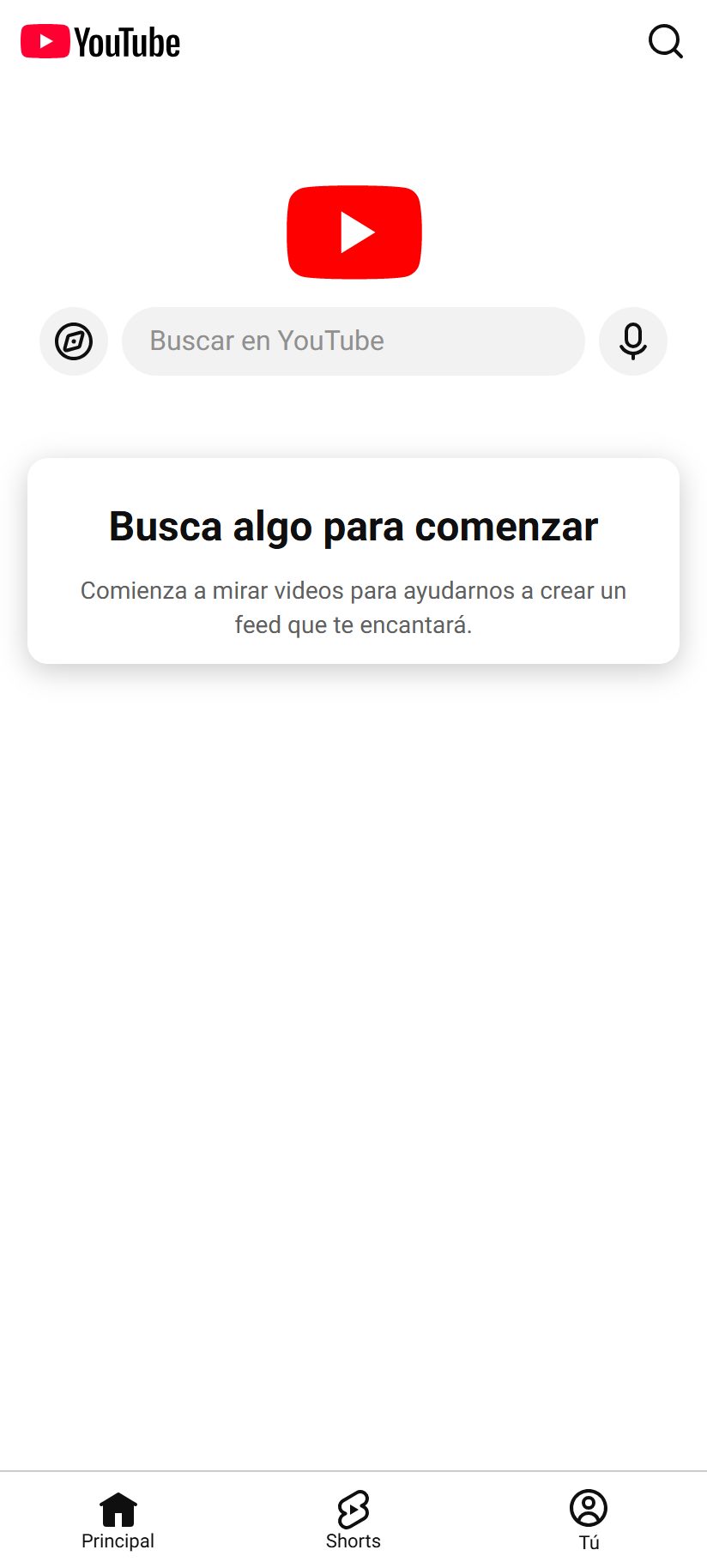
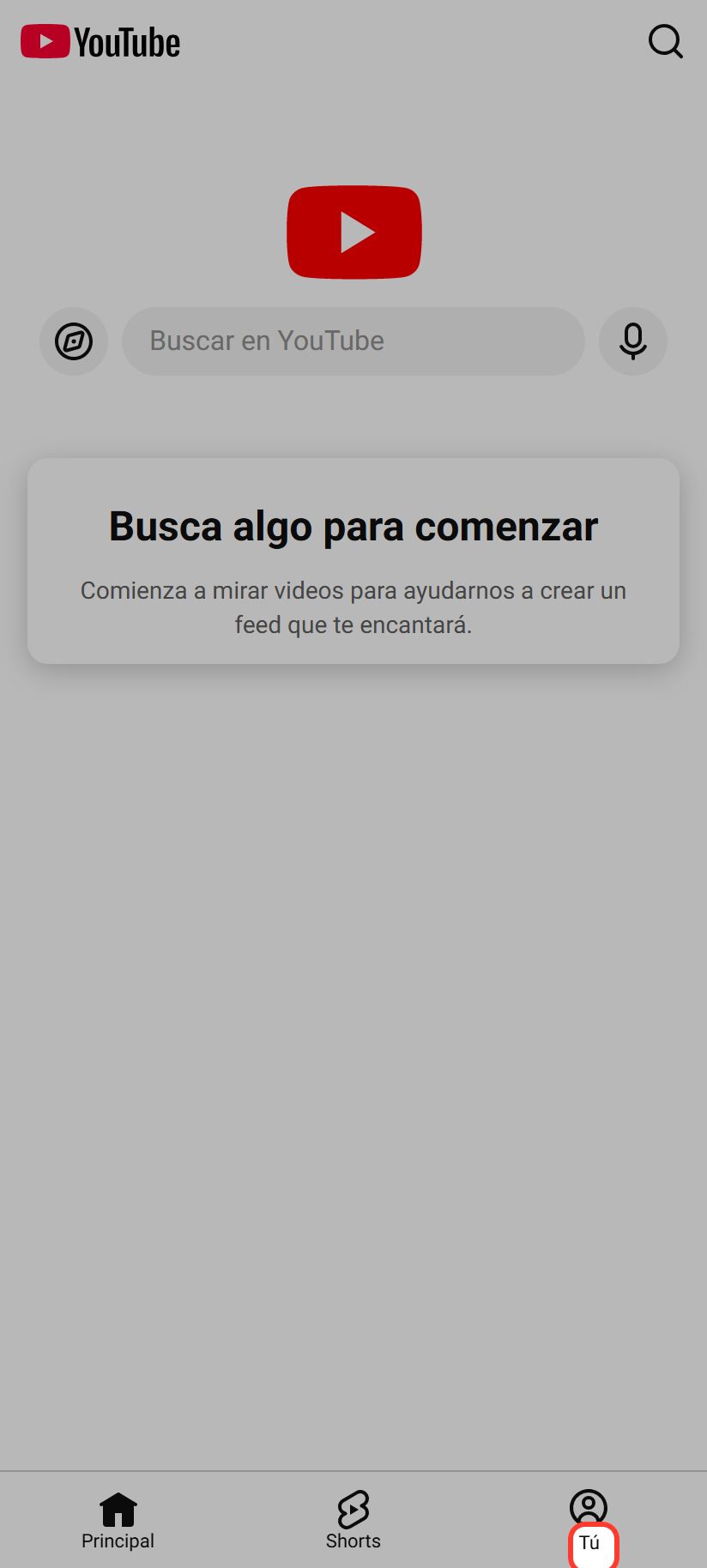
Tap "You" and then the gear
Look at the very bottom. You'll see three tabs. Tap the one on the right. Once you're in, a gear icon appears in the top right corner. Tap that gear: that's where the settings live.
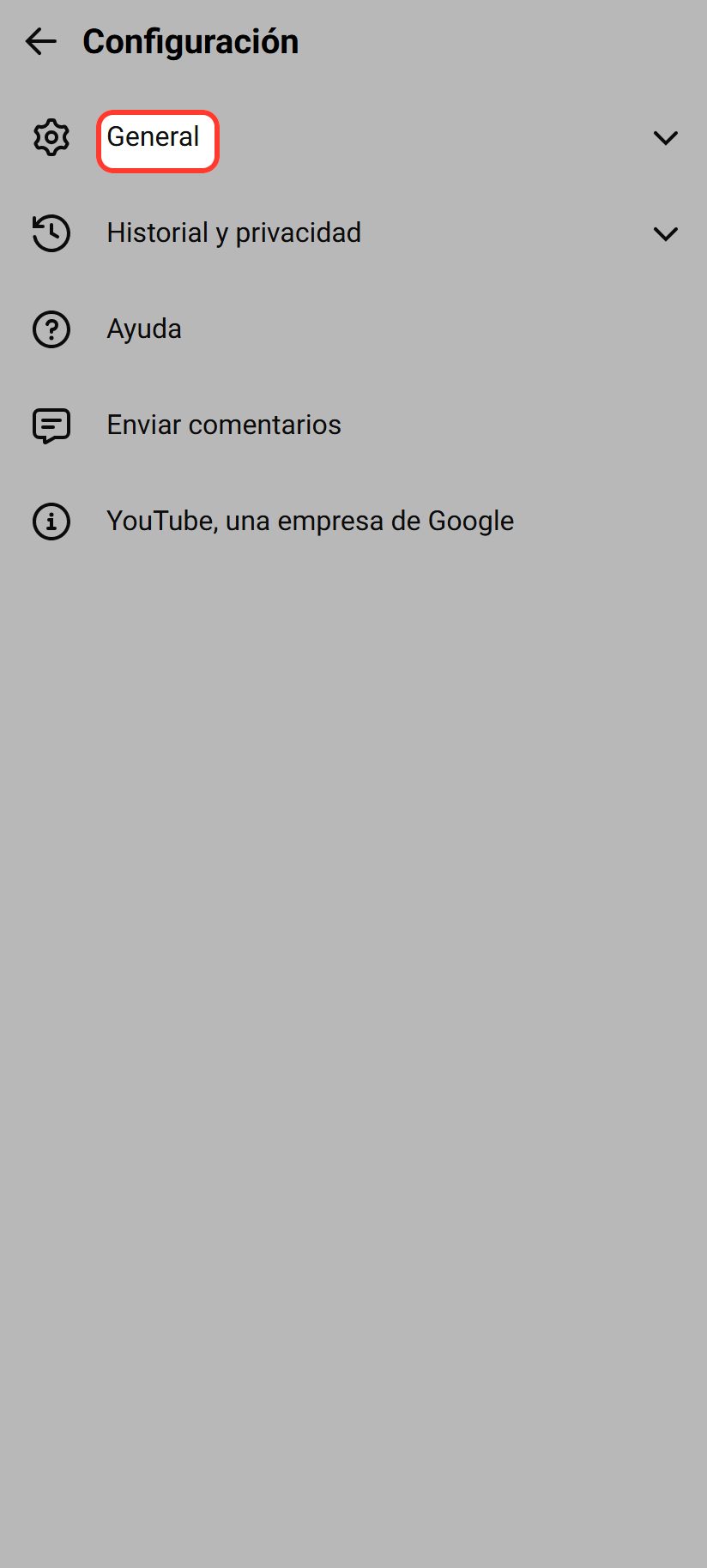
Open the General section
The settings page opens with two sections. One is General, the other is about history and privacy. We need the first one. Tap General.
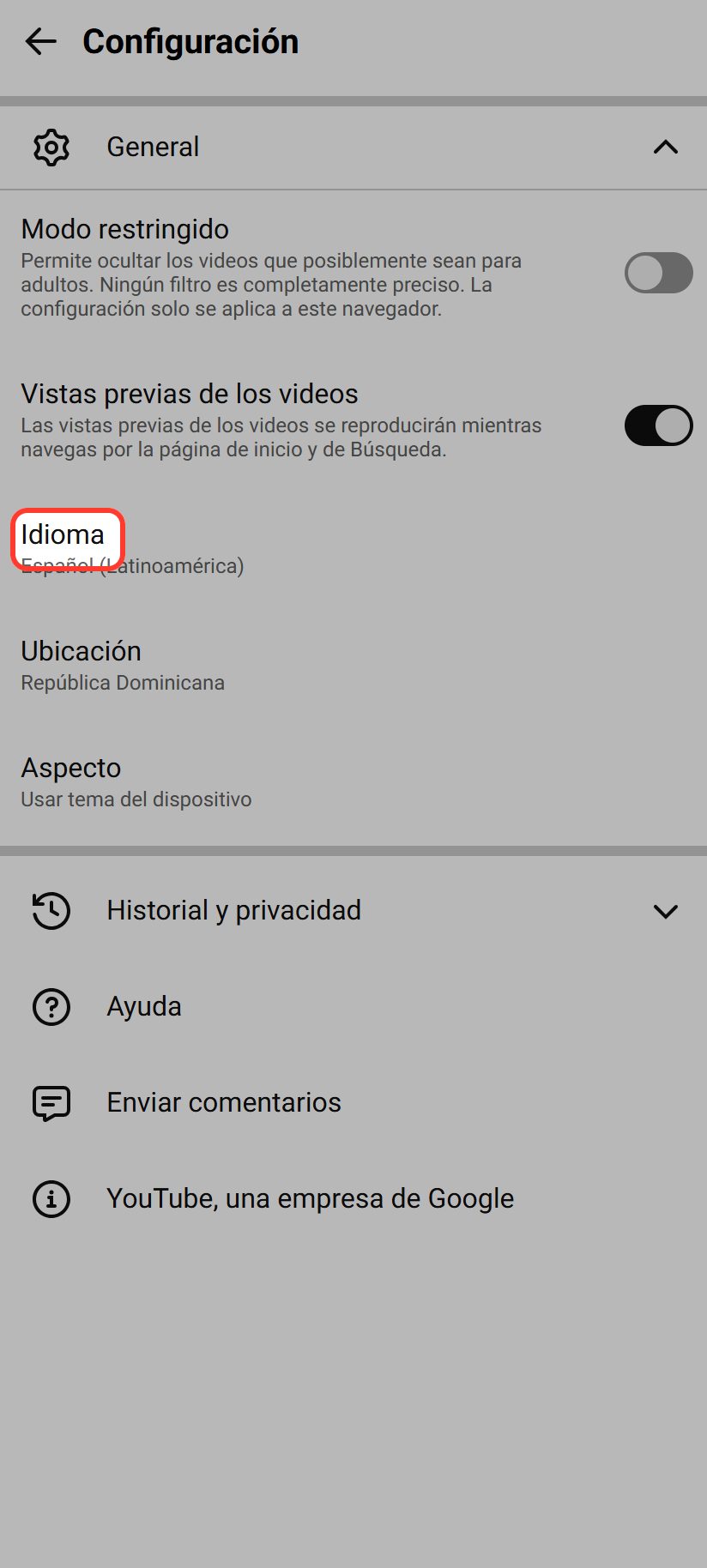
Tap the language row
And here are the real options. Restricted mode, video previews, and right there it is, the language row, showing whatever is currently set. Tap it.
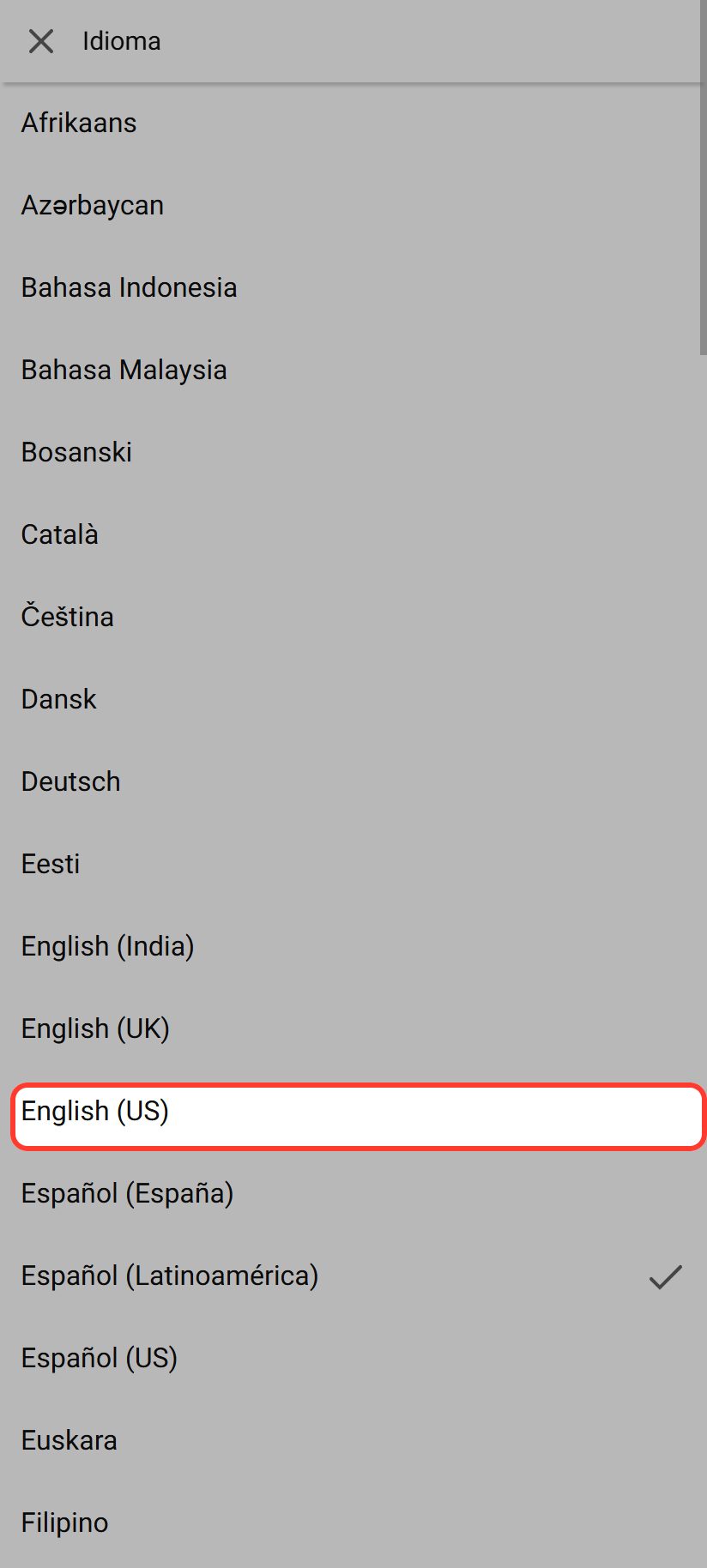
Pick English
You get the same list of languages we saw on the computer, with the same catch: each one written in its own language. Swipe down with your finger until you find English, and tap it. And that's the phone done too.
Why does it switch back?
Now here's the part almost nobody explains, and the reason a lot of people end up searching for this video again a few days later. Watch this: I opened a brand new browser window, and YouTube is back in the other language. Why? Because when you're not signed in, YouTube saves the language in the browser, not with you. Clear your cookies, use incognito, or switch browsers, and it goes right back.
The permanent fix
Here's the permanent fix: sign in with your Google account first, and then change the language using the same steps. Because you're signed in, the setting gets saved to your account instead of the browser. From then on it follows you everywhere. The computer at work, your phone, your tablet. And it never switches on you again.
And that's it. Computer, phone, and the trick to make it stick. If this helped, drop a like and subscribe. I post short, no-nonsense tutorials like this one every week. See you in the next one.
Read these next